

The Three Statuses
Match
Dish is fully compatible with all preferences as-is.UI: Green indicator, show prominently
Partial Match
Dish can be modified to become compatible.UI: Orange indicator, show with guidance
Not a Match
Dish contains excluded allergens or is incompatible.UI: Red indicator or hidden, clear warning
Match Status in Action
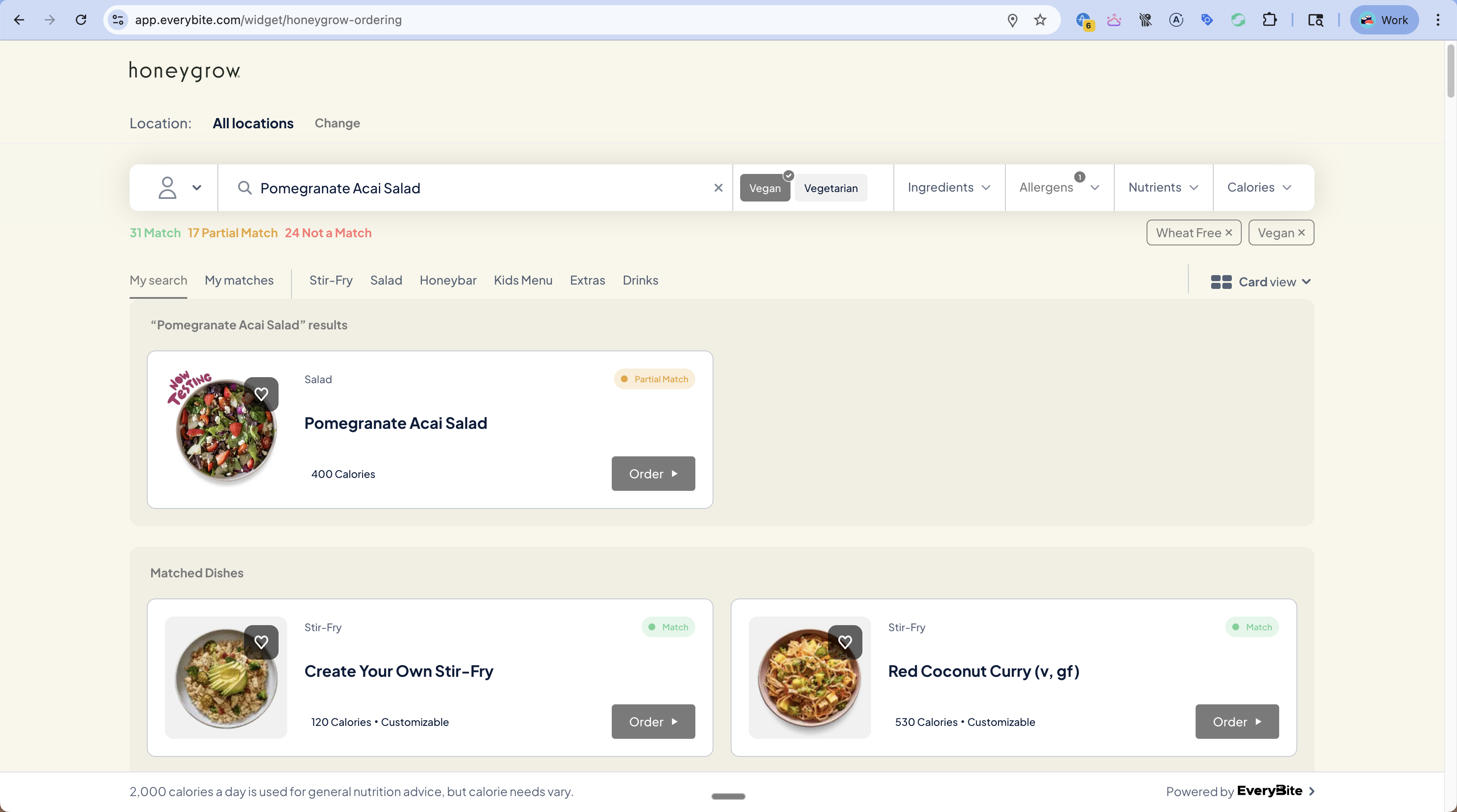
Understanding Each Status
Match (Green)
The dish satisfies all of the guest’s preferences:- Compatible with all selected diets (Vegan, GlutenFree, etc.)
- Contains none of the excluded allergens
- Falls within nutrient ranges (calories, protein, etc.)
Partial Match (Orange)
The dish can be modified to meet the guest’s preferences. This typically means:- It’s a customizable dish (build-your-own)
- Certain ingredients can be removed or swapped
- With the right modifications, it becomes a full Match
Partial Match is powerful UX. Instead of hiding dishes, show guests how to make them work: “Remove Feta Cheese to make this dairy-free.”
Not a Match (Red)
The dish cannot be made compatible:- Contains an excluded allergen that can’t be removed
- Fundamentally incompatible with the diet (e.g., steak for a vegan)
- Core ingredients conflict with preferences
Unknown Match
In some cases, the system can’t determine compatibility:- Missing allergen data for the dish
- Customizable dish where compatibility depends on selections
Querying with Match Status
Get Search Results with Match Info
Filter by Match Status
Only show matches:Match Status for Customizable Dishes
For build-your-own dishes, match status updates in real-time as the guest makes selections: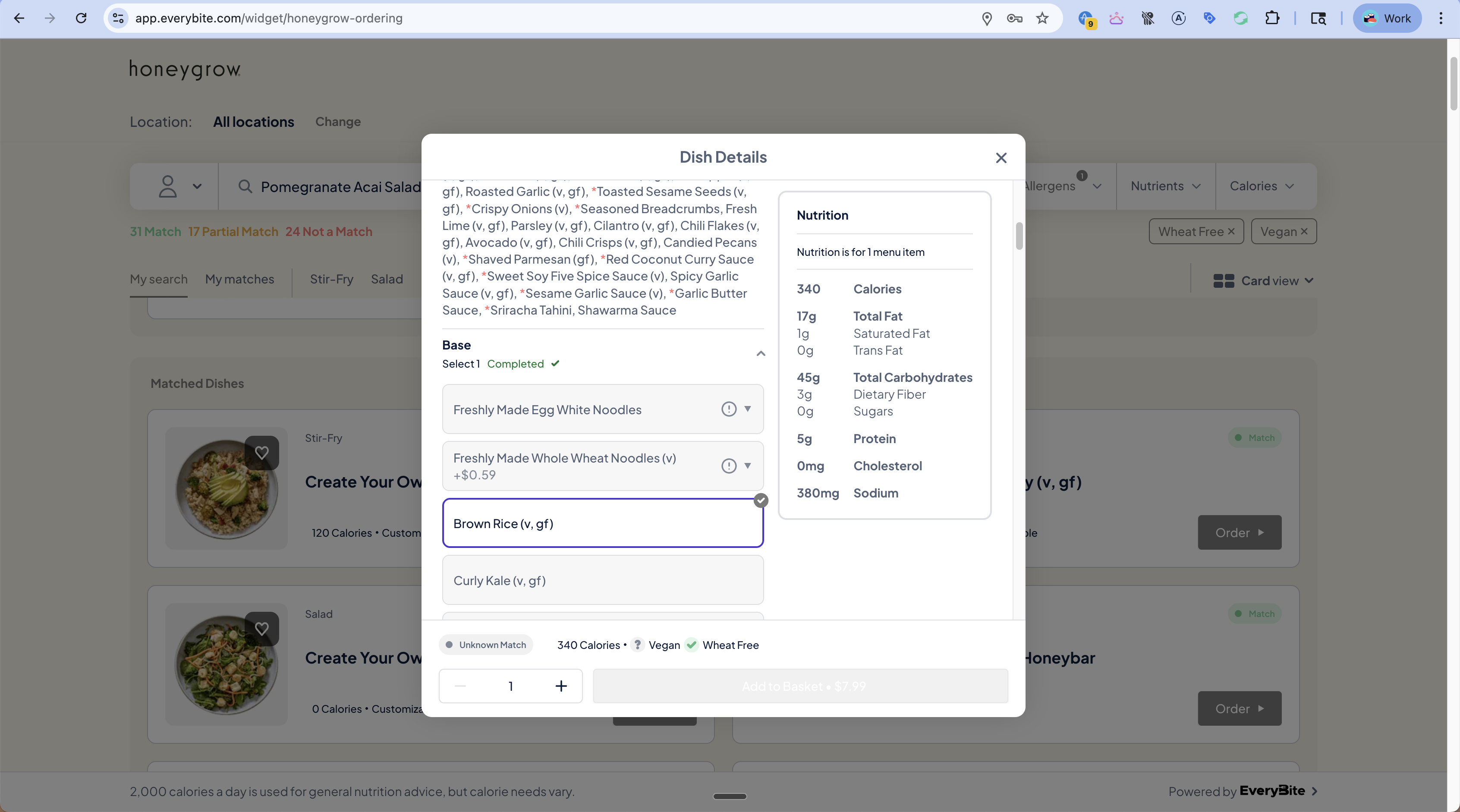
Displaying Match Status
Visual Indicators
Match Summary Bar
Show aggregate counts at the top of results:Modification Hints UI
For Partial Matches, show actionable guidance:Best Practices
Always show Not a Match dishes (with warning)
Always show Not a Match dishes (with warning)
Don’t hide incompatible dishes completely. Guests may be ordering for a group or might want to know what they’re missing. Show them with clear warnings.
Make Partial Match actionable
Make Partial Match actionable
Don’t just show orange. Tell the guest exactly what to change: “Remove Feta to make dairy-free.” This turns a near-miss into a win.
Update counts in real-time
Update counts in real-time
As guests adjust filters, update the match summary immediately. This gives feedback that their filters are working.
Handle Unknown gracefully
Handle Unknown gracefully
For customizable dishes, show “Match depends on your selections” rather than leaving guests confused.
Next Steps
Dishes Endpoint
Build advanced filtering UIs
Customization Endpoint
Handle customizable dishes